
Navy Blue Gift Boxes with Bow | Boxes for Jewellery and Small Gifts

Fundición RegalosJC
  • Format: complete boxes (base + lid).
  • Material: high-density rigid cardboard.
  • Interior: foam (ideal for jewellery and small gifts).
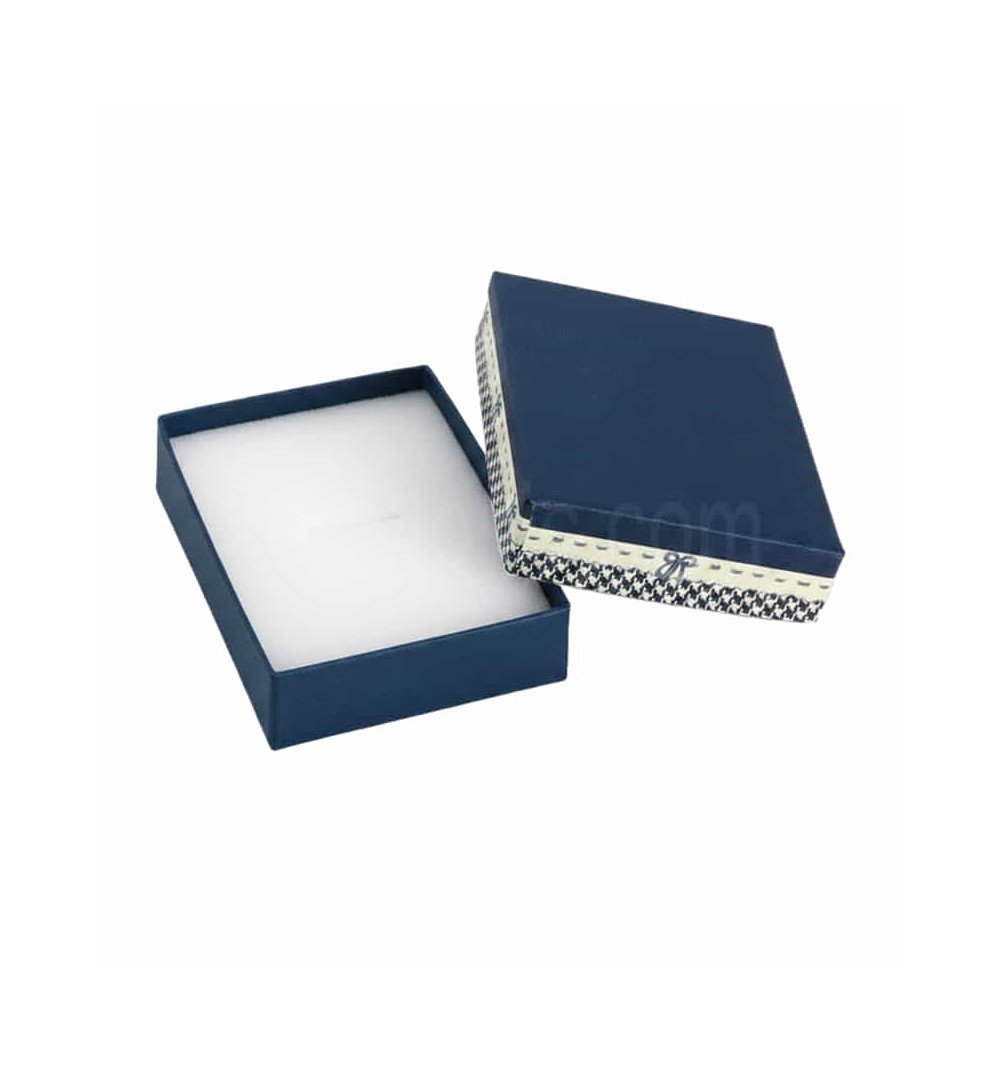
  • Colour/design: navy blue with bow and decorative band.
  • External sizes (cm): 5.5 x 4.5 x 2 Ā· 8 x 5 x 2 Ā· 11.5 x 8 x 2.7.
  • Personalisation: choose the size and click "Customise" to add a logo or text.

Full-colour DTF personalisation (by size)

  • Technique: DTF (full-colour printing).
  • Maximum print area on the lid (mm):
  • For 5.5 x 4.5 x 2 cm and 8 x 5 x 2 cm: 35 x 35 mm.
  • For 11.5 x 8 x 2.7 cm: 50 x 50 mm.
  • Recommended file: high-quality PNG with transparent background (or PDF).

See more options in Cardboard boxes and Custom cases and boxes.

Recommended use: premium packaging for jewellery, event favours and corporate gifts.

Read moreShow less
Size (cm): 5.5 x 4.5 x 2
€0.86
Tax included
Fundición RegalosJC

For more units, contact us.

Share your gift with your loved ones
Description

Navy blue gift boxes for jewellery and small gifts

These navy blue rigid cardboard boxes are designed for an elegant, professional presentation. They include a foam interior to protect the contents and enhance the premium gift effect. They come in a pack of 10, ready to use.

Recommended uses

  • Jewellers, craftspeople and brands: rings, earrings, pendants, brooches and small pieces.
  • Events: weddings, christenings, communions, anniversaries, company dinners and VIP gifts.
  • E-commerce: improve the unboxing experience with a rigid, carefully finished box.

Specifications

  • Material: high-density rigid cardboard.
  • Colour: navy blue / cream.
  • Decoration: bow and decorative band.
  • Interior: foam (presentation and protection).
  • Format: pack of 10 complete boxes (base + lid).

Available sizes

External sizes (cm): 5.5 x 4.5 x 2 Ā· 8 x 5 x 2 Ā· 11.5 x 8 x 2.7.

Tip: choose the size according to the item's volume and the presentation effect you want.

Full-colour DTF personalisation on the lid

For a perfect result, first select the size and then click "Customise". Personalisation uses DTF (full colour) and the customiser keeps the design within the maximum area.

Maximum print area (mm) by size

  • For 5.5 x 4.5 x 2 cm and 8 x 5 x 2 cm: 35 x 35 mm.
  • For 11.5 x 8 x 2.7 cm: 50 x 50 mm.

Recommended file for DTF

  • Ideal: high-quality PNG with transparent background (or PDF).
  • Quality: at actual size, at least 300 dpi (higher for small text or fine lines).

See examples and options: Types of personalisation.

Benefits of this pack

  1. Optimised price: savings with a batch of 10.
  2. Ready to use: no assembly, easier for shops and shipping.
  3. Premium image: increases the perceived value of the product or gift.

Other box models

See more options in Cardboard boxes and Custom cases and boxes.

Frequently asked questions

What exactly does this product include?

A pack of 10 complete boxes (base + lid), with bow, decorative band and foam interior.

Which sizes are available and which should I choose?

  • 5.5 x 4.5 x 2 cm: small gifts and light costume jewellery.
  • 8 x 5 x 2 cm: standard jewellery and small gifts.
  • 11.5 x 8 x 2.7 cm: premium presentation, sets and larger items.

Where and how is it personalised?

Personalisation is on the lid only, with full-colour DTF.

What is the maximum print area?

35 x 35 mm for 5.5 x 4.5 x 2 cm and 8 x 5 x 2 cm. 50 x 50 mm for 11.5 x 8 x 2.7 cm.

Which file should I upload for a sharp result?

We recommend a PNG with transparent background (or PDF) in high quality. If there is small text, upload the highest quality possible.

Can I use the same design on different sizes?

Yes, but check the proportions: the maximum area changes with the size.

Read moreShow less
Gift ideas and inspiration

Other related products

  1. Choose the product and its options (size, colour, finish).
  2. Click "Customise" to open the editor.
  3. Upload your image or logo from the IMAGE tab → Image (JPG/PNG; better quality = better result).
  4. Add text from the TEXT tab → enter your text (choose font, size and colour).
  5. Place and adjust: drag to move, use the corners to scale/rotate.
  6. Zones: keep text and logos inside the safe zone and extend backgrounds to the bleed.
  7. Layers: arrange them (front/back).
  8. Check the preview; fix anything if you see warnings (low resolution or cropping).
  9. Add to cart and complete your purchase.
  • Sharp images: if the editor warns of low resolution, upload a larger file or reduce its size on the canvas.
  • Easy alignment: turn on the guides to centre and square up elements.
  • Felt mats: if your design has fine lines, add a background underneath (solid shape) and increase the thickness.
  • Crest plaques/plaques: respect the text plate and the porcelain shape (fill up to the edge/bleed).
  • Laser engraving: only available on quote.
  • Mobile: hold your phone upright to see all the options, or sideways to see it bigger.

These options appear in the three-dot menu of the selected object. They are shortcuts to get your design perfect in seconds.

  • Bring to front: places the element on top of the rest. Useful when text is hidden behind an image.
  • Send to back: sends the element underneath. For backgrounds or images that should not cover text or logos.
  • Centre horizontally: aligns the object to the centre on the X axis within the design area.
  • Centre vertically: aligns the object to the centre on the Y axis within the design area.
  • Centre in container: centres the object both horizontally and vertically in one go.
  • Duplicate: creates an exact copy of the element (ideal for repeating logos in corners or creating symmetry).
  • Clip image: fits/crops the image to the limits of the area or mask so it does not stick out.

Mistakes it avoids:

Text hidden behind images → Bring to front.

Photos covering plates → Send to back.

Objects "almost centred" → Centre H/V or Centre in container.

Backgrounds sticking out → Clip image.

  • "Low-resolution image" → replace it with a larger one or make it smaller in the design.
  • "Object outside the safe zone" → move or shrink it. Avoid text right at the edge.
  • "Unsupported format" → use JPG/JPEG (photos), PNG (if you don't want a background) or SVG (vector logos).
  • No visible change after adding a background → check Layers and bring the right element to the front.

Click "Need help?" on the product page or use the contact form and tell us the product and what you want to achieve, and attach your files. We will suggest improvements if we think they are needed.

Privacy Policy

Add Your Text Here

We care about your privacy and want to be transparent about the data we collect, how we use it, and your rights to control that information.Ā 

We collect information you provide directly to us, such as your name and email address when you sign up for our newsletter or contact us through our website.

We use the information we collect for various purposes, including:

  • Providing and improving our services.
  • Sending you updates and newsletters.
  • Analyzing website usage to enhance user experience.
Add Your Text Here

We care about your privacy and want to be transparent about the data we collect, how we use it, and your rights to control that information.Ā 

We collect information you provide directly to us, such as your name and email address when you sign up for our newsletter or contact us through our website.

We use the information we collect for various purposes, including:

  • Providing and improving our services.
  • Sending you updates and newsletters.
  • Analyzing website usage to enhance user experience.

We care about your privacy and want to be transparent about the data we collect, how we use it, and your rights to control that information.Ā 

We collect information you provide directly to us, such as your name and email address when you sign up for our newsletter or contact us through our website.

We use the information we collect for various purposes, including:

  • Providing and improving our services.
  • Sending you updates and newsletters.
  • Analyzing website usage to enhance user experience.

Welcome to the tour of our different Mus case models

  1. Which case do you want? This is the key choice.
    You can buy the case as it comes, or give it an authentic, genuine touch with a personalised presentation, with other, more modern Regalos JC amarraco designs, and choose the right deck for the type of case you want to buy.
  2. Choose one of the amarraco or chip sets from all the models available; there are quite a few, as you will see.
  3. Select a deck. Please note that the Spanish Fournier deck in its cardboard box does not fit in the "Cajita de mus" (small Mus box). Keep this in mind, so you can't say we didn't warn you!
  4. If you want a mat, look how many options you have!
  5. Important: check your cart carefully before completing your purchase.
Your shopping cart is empty.
Order Summary
Subtotal:
€0.00
Shipping:
Total(tax incl.):
€0.00
Total (tax excl.):
€0.00
Included taxes:
€0.00
Sign in and register
Already a customer? Sign in:

We are here for you

Opening hours

Monday to Friday
8:00-14:30 | 16:00-18:00

Want to contact us?

Our contact form is ready to answer any question you have

Chat with us on WhatsApp

Write to us and we'll reply as soon as possible.

Call us

+34 655 821 581
Available during business hours

Call our mobile

Available during business hours

Personalised Gifts Catalogue

Made in Spain: personalised plaques, pins, trophies, awards and custom-made gifts. No middlemen.