

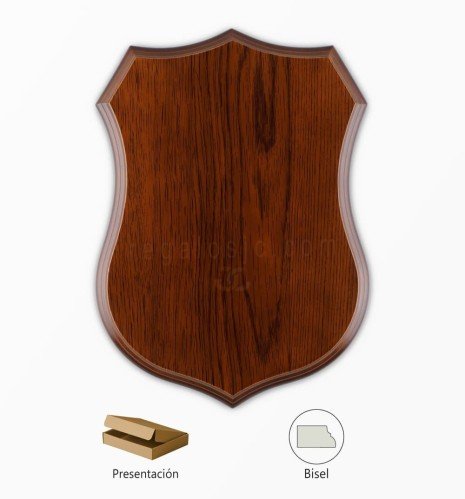
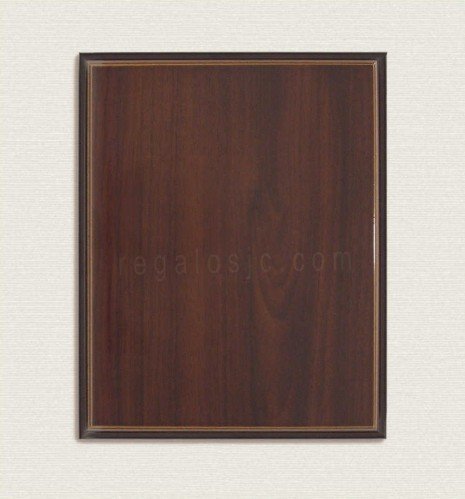
Wooden Bases for Crest Plaques and Plaques

Active filters

8 items
8 items

Wooden crest plaques: elegance and quality in one product

High-quality wooden crest plaques

In our online shop we offer a wide selection of high-quality wooden crest plaques, perfect for any occasion. Our crest plaques are made with the best woods for crest plaques, ensuring durability and an elegant look.

A range of sizes and colours

We understand that every customer has unique needs, so we offer a variety of sizes and colours. From small desk or tabletop sizes to large decorative wall pieces, our options suit any space and preference. You can also choose from a range of wood tones, from classic mahogany to modern walnut.

A manufacturer you can trust

We are a manufacturer with years of experience making wooden crest plaques. Our team of craftsmen combines traditional techniques with modern technology to create pieces that are not only attractive but also durable and resistant.

What types of wood are used for crest plaques?

We use a variety of high-quality woods such as oak, walnut and mahogany, so that each plaque is unique and long-lasting.

Can I personalise my wooden crest plaque?

Yes, we offer personalisation options with porcelain, cast metal and resin (the latter to order), including engravings and specific colours to make your crest plaque truly unique.

How long will my crest plaque take to arrive?

Our wooden bases for crest plaques are normally shipped the day after you place your order. Delivery time varies with quantity and destination, but we aim to ship within 3–5 working days.

Visit us today and discover the elegance and quality of our wooden crest plaques. Order now and add a distinctive touch to your collection!

Want something even more personal?

Tell us about your project in detail. We are manufacturers with our own foundry: we bring your ideas to life (however wild they may seem).
  1. Choose the product and its options (size, colour, finish).
  2. Click "Customise" to open the editor.
  3. Upload your image or logo from the IMAGE tab → Image (JPG/PNG; better quality = better result).
  4. Add text from the TEXT tab → enter your text (choose font, size and colour).
  5. Place and adjust: drag to move, use the corners to scale/rotate.
  6. Zones: keep text and logos inside the safe zone and extend backgrounds to the bleed.
  7. Layers: arrange them (front/back).
  8. Check the preview; fix anything if you see warnings (low resolution or cropping).
  9. Add to cart and complete your purchase.
  • Sharp images: if the editor warns of low resolution, upload a larger file or reduce its size on the canvas.
  • Easy alignment: turn on the guides to centre and square up elements.
  • Felt mats: if your design has fine lines, add a background underneath (solid shape) and increase the thickness.
  • Crest plaques/plaques: respect the text plate and the porcelain shape (fill up to the edge/bleed).
  • Laser engraving: only available on quote.
  • Mobile: hold your phone upright to see all the options, or sideways to see it bigger.

These options appear in the three-dot menu of the selected object. They are shortcuts to get your design perfect in seconds.

  • Bring to front: places the element on top of the rest. Useful when text is hidden behind an image.
  • Send to back: sends the element underneath. For backgrounds or images that should not cover text or logos.
  • Centre horizontally: aligns the object to the centre on the X axis within the design area.
  • Centre vertically: aligns the object to the centre on the Y axis within the design area.
  • Centre in container: centres the object both horizontally and vertically in one go.
  • Duplicate: creates an exact copy of the element (ideal for repeating logos in corners or creating symmetry).
  • Clip image: fits/crops the image to the limits of the area or mask so it does not stick out.

Mistakes it avoids:

Text hidden behind images → Bring to front.

Photos covering plates → Send to back.

Objects "almost centred" → Centre H/V or Centre in container.

Backgrounds sticking out → Clip image.

  • "Low-resolution image" → replace it with a larger one or make it smaller in the design.
  • "Object outside the safe zone" → move or shrink it. Avoid text right at the edge.
  • "Unsupported format" → use JPG/JPEG (photos), PNG (if you don't want a background) or SVG (vector logos).
  • No visible change after adding a background → check Layers and bring the right element to the front.

Click "Need help?" on the product page or use the contact form and tell us the product and what you want to achieve, and attach your files. We will suggest improvements if we think they are needed.

Your shopping cart is empty.
Order Summary
Subtotal:
€0.00
Shipping:
Total(tax incl.):
€0.00
Total (tax excl.):
€0.00
Included taxes:
€0.00
Sign in and register
Already a customer? Sign in:

We are here for you

Opening hours

Monday to Friday
8:00-14:30 | 16:00-18:00

Want to contact us?

Our contact form is ready to answer any question you have

Chat with us on WhatsApp

Write to us and we'll reply as soon as possible.

Call us

+34 655 821 581
Available during business hours

Call our mobile

Available during business hours

Personalised Gifts Catalogue

Made in Spain: personalised plaques, pins, trophies, awards and custom-made gifts. No middlemen.